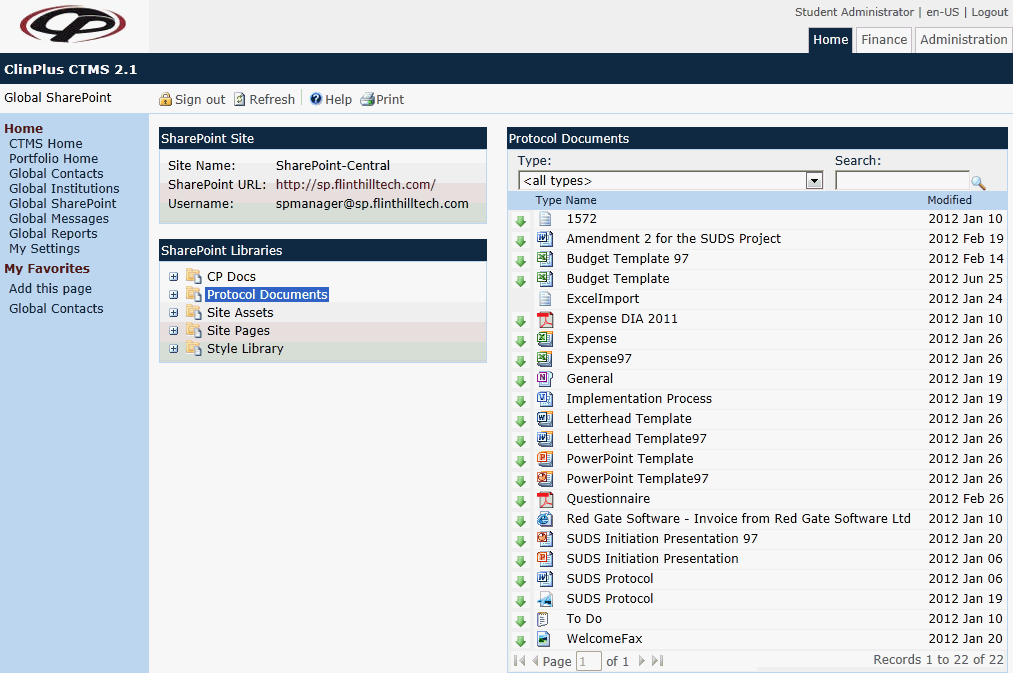
Users can browse libraries, folders, and documents within a single SharePoint Site for the company. A separate SharePoint Site could be set up at the Project Level. Users can read documents from SharePoint, define SharePoint Sites, and use these sites to browse and download documents.
Since documents are stored in SharePoint, users do not need to maintain them in CTMS, although they could. When a CTMS document is linked to a SharePoint document, the most current version of the document will be retrieved from the SharePoint Site when the user requests a downloaded copy from CTMS. A copy of the SharePoint document is stored in the CTMS database in case the SharePoint link becomes unavailable due to network connectivity failure, permission changes, or document file relocation or renaming. When this occurs, the user will be notified that they are viewing an older, saved version of the document. The user cannot update a document from CTMS to SharePoint. In addition, only SharePoint Libraries and Documents are integrated with CTMS, not Lists and Discussions.
To enable this page, administrators need to Enable Global SharePoint Page on the Application configuration group and modify the settings under the SharePoint Settings configuration group. Administrators set the Global Sharepoint Site here and set the Project SharePoint Site on the Project Configuration Group. Administrators enter all available SharePoint Sites on the SharePoint Sites system tables.
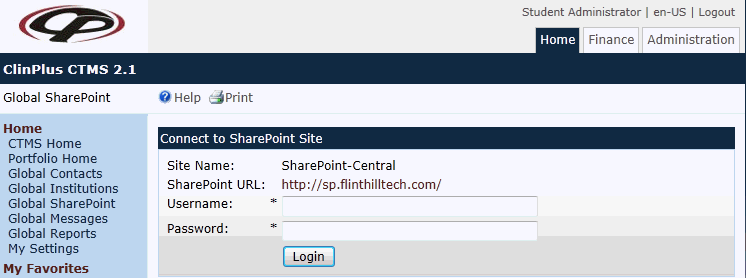
Upon entering this page, the system will attempt to authenticate against the SharePoint Site entered on the SharePoint Site configuration group.
Click Common Buttons for a description of the buttons found throughout the system and their uses.
Users may be required to login to the SharePoint Site
Other users may see this screen right away
Field |
Description |
Connect to SharePoint Site |
|
Site Name |
This field shows the name of the SharePoint site. |
SharePoint URL |
This field shows the web site address of the company's SharePoint service. |
Username |
This field may be pre-populated with the last successful authentication username for the current user for the current SharePoint Site. This field is required and can hold up to 50 characters. |
Password |
This field is required and can hold up to 50 characters. |
Protocol Documents |
|
Type |
This column displays the icon of the document type, for instance, Word or Excel document. Certain document types will be hidden if they are not listed as an active record on the Document Extensions page. |
Name |
This column shows the name of the document. |
Modified |
This column displays the date of the last time the document was changed. |
Button |
Description |
|
When this button is clicked, the username and password will be passed to the SharePoint Authentication Process. If the authentication process is successful, the authentication credentials will be stored for the duration of the user’s web session. If the authentication process is unsuccessful, any saved authentication credentials will be cleared from the user’s web session, an error message will be displayed and all further processing will stop. |
|
The |
|
Clicking the |
|
This button will be hidden unless
the selected SharePoint Site has been successfully authenticated
by the SharePoint Authentication Process. Clicking the |
|
Clicking the |


