 next to that institution
to open the Institution module.
next to that institution
to open the Institution module.The Global Institutions page lists all the available institutions that can be linked to Contacts, Sites, and/or Shipment Vendors.
Add an Institution
Edit an institution
next to that institution
to open the Institution module.
Most columns can be sorted in ascending or descending order by clicking the column heading.
Click Common Buttons for a description of the buttons found throughout the system and their uses.
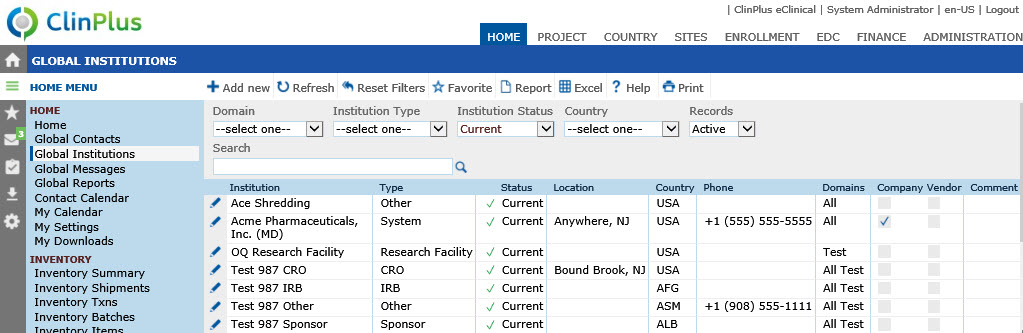
Field |
Description |
Search Fields |
|
Domain |
The user can filter the records based on the record's Domain Scope and Domains. Domains are used to separate groups of projects. There are two Domain Types; Test, which can be used for testing, training, etc., and Production, which is used for your live studies. |
Institution Type |
The user can filter the institutions based on whether their type is CRO, IRB, Other, Research Facility, SMO, Sponsor, or System. |
Institution Status |
The user can filter the records based on the Status of the record. The available choices are:
|
Review Status |
The user can filter the records based on the Review Status of the record. The available choices are:
This filter will be hidden when the Enable Review Status Configuration Variable is set to False. |
Country |
The user can filter the institutions based on the countries listed in the drop down. |
Records |
The user can filter the institutions based on whether the records are active or inactive, or simply select all records. |
Search |
The user can enter any word or string to see if it exists in the institutions database. |
Rolodex |
The Rolodex will appear when there are 51 or more contacts. |
Column Headings |
|
Institution |
After adding an institution, its name will appear in this list. |
Type |
Every institution will be placed under a type; either CRO, IRB, Other, Research Facility, SMO, Sponsor, or System. |
Status |
The Status column will display either
*The Pending Review and Not Approved icons will display if the Enable Review Status Configuration Variable is set to True. |
Location |
The City and State (if available) of the institution's Primary Address will be displayed. |
Country |
The Country of the institution's Primary Address will be displayed. |
Phone |
The institution's Primary Phone will be displayed. |
Domains |
The following choices will display based on the institution's Domain Scope:
|
Company |
When this field is checked, the Institution will be available in the Company field on the Project Dialog. |
Vendor |
A check in this box indicates that payments can be tracked for this institution. |
Comment |
If a comment was entered for the institution, it will appear here. |