 or
edit an item by clicking
or
edit an item by clicking  ,
which opens the Subject
module. To find an item, enter a word or
string in the Search
filter and press enter. To remove all search
options, click the
,
which opens the Subject
module. To find an item, enter a word or
string in the Search
filter and press enter. To remove all search
options, click the  button.
The Enrolled Subjects page displays the list of enrolled subjects for the current site. Screen Failures are not included in this list. Subjects can be added manually or through a Data Import from another system.
The user can add an item by selecting Active
under the Records filter and clicking
or
edit an item by clicking ,
which opens the Subject
module. To find an item, enter a word or
string in the Search
filter and press enter. To remove all search
options, click the button.
Columns can be sorted in ascending or descending order by clicking the column heading.
Click Common Buttons for a description of the buttons found throughout the system and their uses.
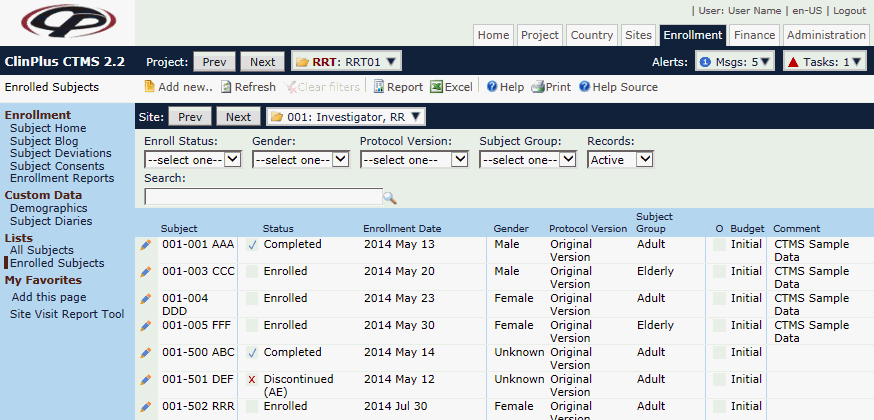
Field |
Description |
Search Fields |
|
Enroll Status |
Records can be filtered by the Enrollment Status of each record. The available choices are:
|
Gender |
Records can be filtered by the gender of each record. This filter will be hidden if the Enable Subject Gender configuration variable under the Enrollment configuration group is set to False. If visible, the available choices are:
|
Protocol Version |
Records can be filtered based on the Protocol Version of each record. The available choices are the list of active Protocol Version records for the current Project. |
Subject Group |
Records can be filtered based on the Subject Group of each record. The available choices are the list of active Subject Group records for the current Project. |
Records |
The user can filter the institutions based on whether the records are active or inactive, or simply select all records. |
Search |
The user can enter any word or string to see if it exists in the institutions database. |
Column Headings |
|
Subject |
This column lists the subject identification number. |
Status |
This column lists where the subject is in the study. The choices include:
|
Enrollment Date |
This column lists the subject's enrollment date. |
Gender |
This column will be hidden if the Enable Subject Gender configuration variable under the Enrollment configuration group is set to False. If visible, the column includes:
|
Protocol Version |
This column indicates the protocol version that was used when the subject was enrolled. |
Subject Group |
This column will be hidden if Subject Groups have not been defined for the current project. |
Override Checkbox |
A check in this column indicates that the budget was overridden by having an entry in the Override Budget field on the Subject module. This column will be hidden if the Enable Site Budgets configuration variable is set to “False” |
Budget |
This column will be hidden if the Enable Site Budgets configuration variable under the Finance and Budgets configuration group under the Finance and Budgets configuration group is set to False. If the column is visible and there is no budget set, the subject either was not assigned a protocol version in the Subject module or the budget was not mapped properly in the Budget Mapping module. |
Comment |
This column lists any comments or notes made for this subject. |
Attachments |
This column displays the number of documents attached to the record using X of Y, where Y is the total number of attachments, and X is the number that have been linked/uploaded. A check in front of the display indicates that all attachments have been linked or uploaded. |