button.
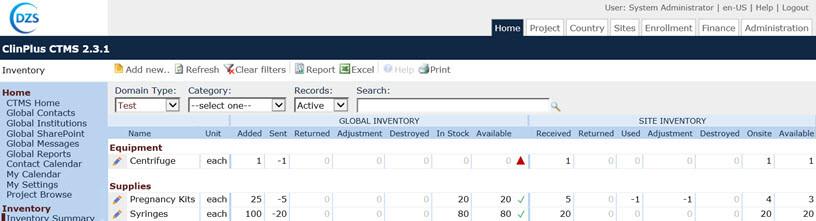
 The Inventory Summary page lists all the inventory items that are used in all projects. Users with the proper permission can add items into the Global Inventory and view the status of each inventory item globally and at the site level. To view the status of a particular site, you will need to select the project and then the site on the Sites tab.
The Domain Type filter will
display if the user has
been licensed for both domain types, Production and Test. If visible, Production
is the default. Users can filter
the records on Category, which
comes from the System Tables called Inventory Categories. Users also
can filter on whether a record is Active,
Inactive, or All
and can perform a search for a word or string in the record. To remove
all search options, click the
button.
To add a record, click  or
edit a record, click
or
edit a record, click  , which opens the
Inventory
Type module. After adding an inventory item that requires a
batch number, go to the Inventory
Batches page to add the batch numbers.
, which opens the
Inventory
Type module. After adding an inventory item that requires a
batch number, go to the Inventory
Batches page to add the batch numbers.
Columns can be sorted in ascending or descending order by clicking the column heading.
On the right of the Available column, the Reorder Flag will display one of the following icons:
 =
The number in the Available column
is greater than Reorder Value,
or Show Reorder Flag on the Reorder
module is unchecked
=
The number in the Available column
is greater than Reorder Value,
or Show Reorder Flag on the Reorder
module is unchecked
 = Show
Reorder Flag is checked and the number in the Available
column is less than or equal to the Reorder
Value on the Reorder
module, but greater than zero
= Show
Reorder Flag is checked and the number in the Available
column is less than or equal to the Reorder
Value on the Reorder
module, but greater than zero
 =
Show Reorder Flag is checked and
the number in the Available column
is less than or equal to zero.
=
Show Reorder Flag is checked and
the number in the Available column
is less than or equal to zero.
Click here for a description of the Common Buttons found throughout the system.